
You need a Brand Asset account in a company workspace.
Find and download an asset
Open Library
The Library shows only images from your company that a reviewer has Approved or that are Published. Drafts and images under review are not shown here; follow those in Dashboard & history.
Filter the list
Narrow the list with Status, Format (aspect ratio), Creator and Campaign code. Use Previous and Next to move between pages.
Check the details
Each card shows who approved it and when, the creator, format and channel, campaign code, where it is used and any approval note. Read the note before using the image.
Download
Select the download icon in the corner of the image to open the Export menu, then choose a file type. The same menu appears under Export in Create and History. Downloaded files carry a machine-readable label in their metadata showing that they were created with AI. Do not remove it.
Export options
The menu has two parts: clean files without a logo, and files With brand logo. The logo is added at export from the approved files in your Brand Guide; it is never drawn by the image model.
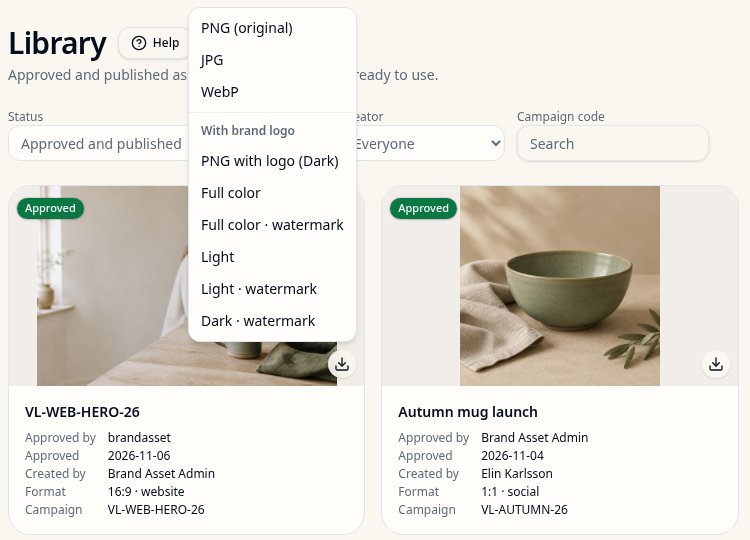
| Option | What you get |
|---|---|
| PNG (original) | The image exactly as generated, best quality, larger file. Use for print or further editing. |
| JPG | Smaller file for web, email and most social channels. |
| WebP | Smallest file for websites that support it. |
| PNG with logo (…) | Your company’s default: the logo version and style set by your Company Admin, in the set corner, size and margin. |
| Full color, Light, Dark | The same placement with another logo version. Use Light on dark images and Dark on light images. |
| … · watermark | The logo as a faint, see-through mark. Opacity is set by your Company Admin. |
The extra versions only appear when your company lets creators choose logo version and style. A greyed-out option means that logo file has not been uploaded. Logo exports are always PNG. Exporting a file is not an approval; only Library images are approved for use. Logo placement is explained in Set up logos on your images.
Captions
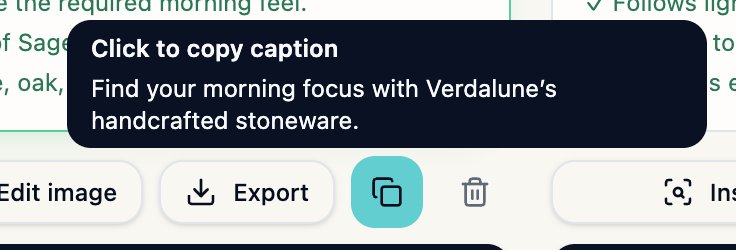
Each image can come with a short social caption written from its brief. In Create and History, point at the copy icon next to Export to read it, and click to copy it. Check the caption against your channel’s tone before publishing, like any text.
If something is missing
My image is not in the Library.
It appears only after a reviewer approves it. Check its status in Dashboard & history.
The list says no approved assets match.
Clear the filters, or choose Approved and published under Status.