
Why this helps
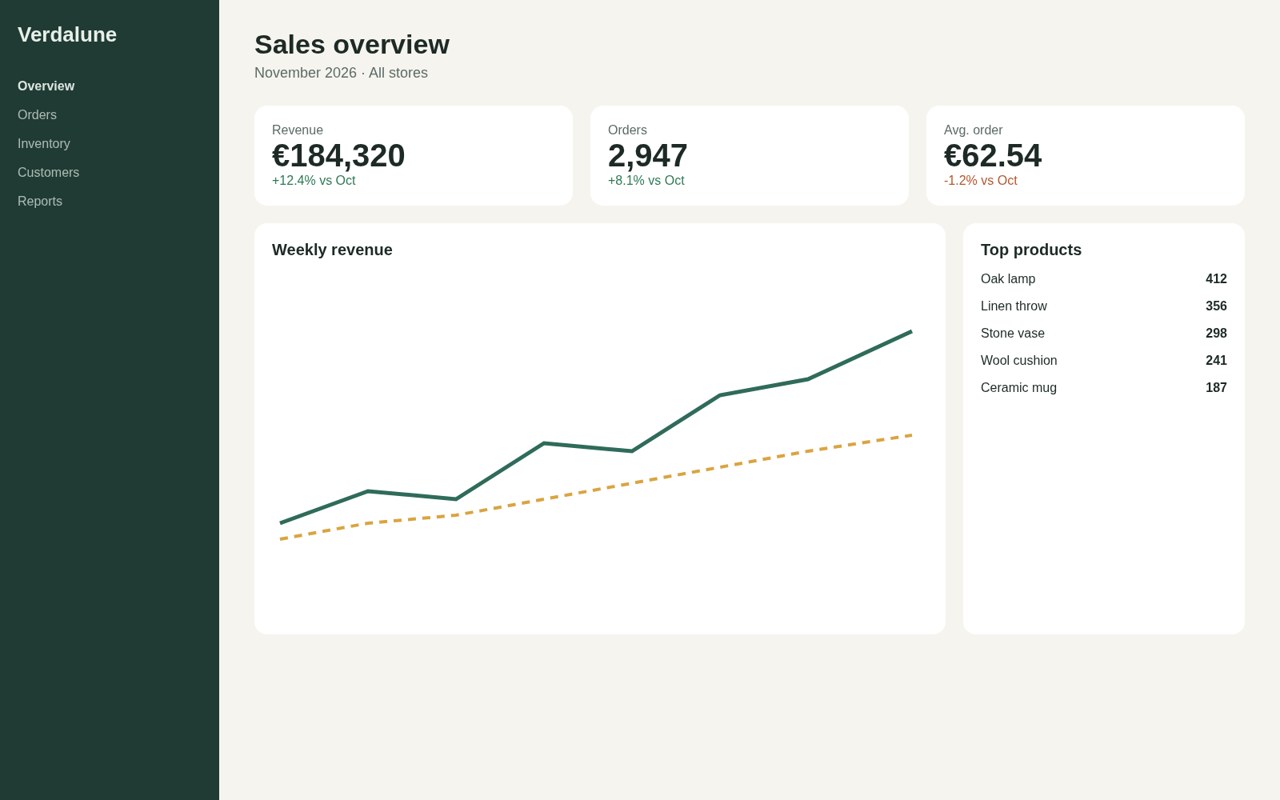
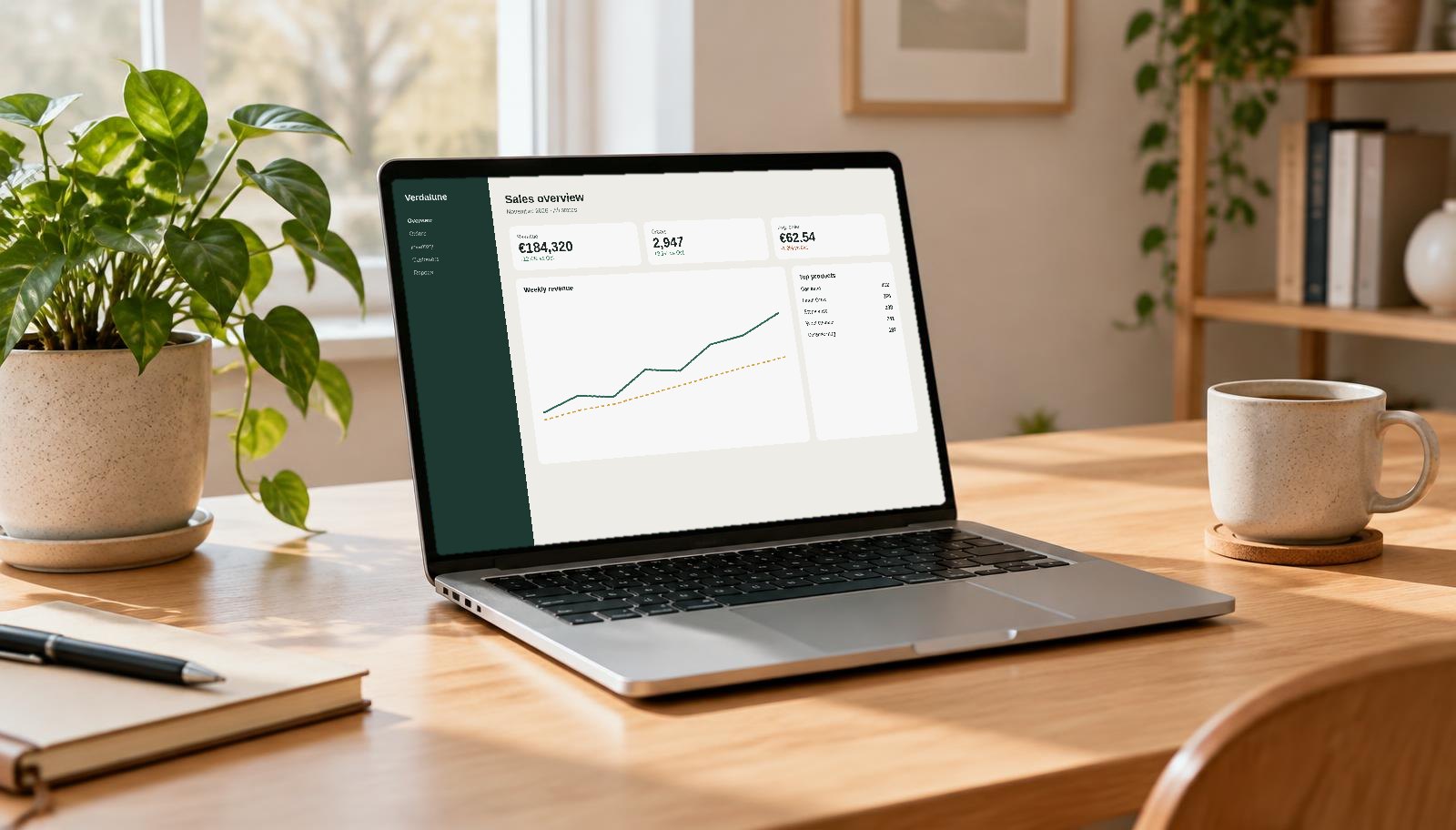
AI image models redraw text and numbers, so a generated dashboard rarely matches your product. Screen Staging lets the AI create only the room, the device and the light. Your original screenshot is then fitted onto the display in the right perspective, so every label and figure is your own.
Screen Staging is a staging add-on, included in packages with one or more add-ons. If it is not enabled, Add a screen shows an example and an enquiry button instead. Use PNG or JPG screenshots at full resolution.
Add company screenshots
Open the screenshot library
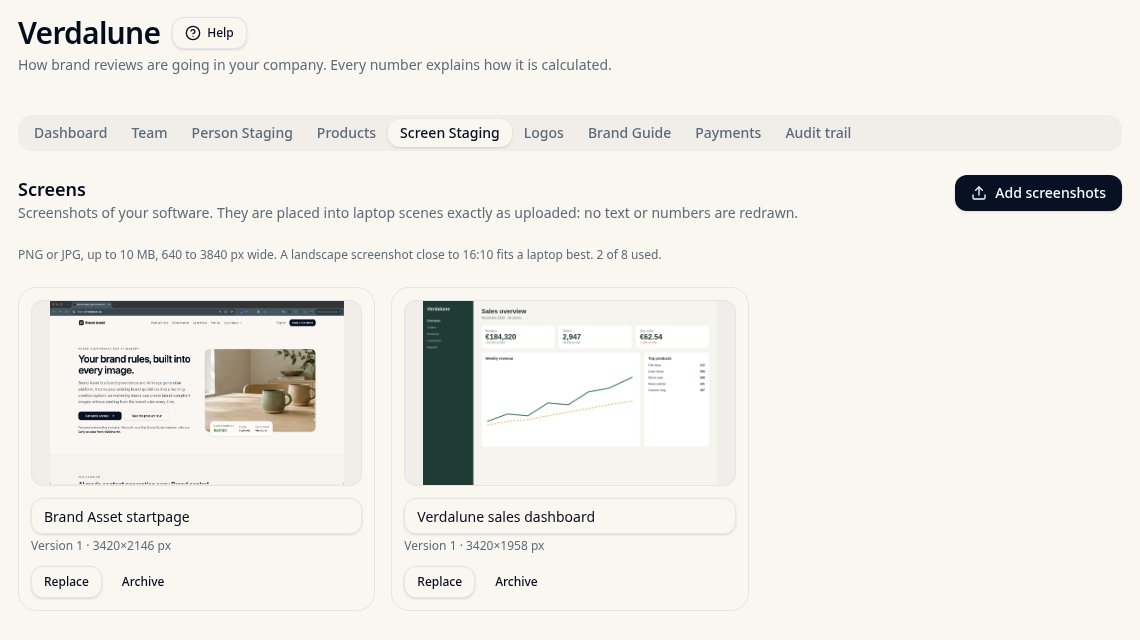
Company Admins open Company → Screen Staging. Upload one or several screenshots at once. Every screenshot needs a clear name, such as “Network map dashboard”, before it is saved.
Replace or archive
Replacing a screenshot adds a new version; images already made keep the version they used. Archive screenshots that should no longer be offered in Create.
A Company Admin can switch this on under Company → Screen Staging. When on, everyone, including administrators, must use active screenshots from the company library. Create hides personal uploads and previously uploaded personal screenshots. Add approved screenshots to the library before enabling it.
This controls the source files, not image approval. Generated images still need the usual review. Switching it off makes personal screenshot uploads available again. Changes to Strict mode are recorded in the company audit trail.

Create a screen image
Open Add a screen
In Create, select Add a screen at the top of the page. Choose a screenshot from Company screenshots, or select Upload custom screenshot to use your own. Your own uploads need a name, are visible only to you and are limited to 8 per person. When Strict mode is on, only Company screenshots is available; ask your Company Admin to add any missing screenshot.
Choose the device
Pick where the screenshot is shown: Laptop, or Monitor, TV, Tablet, Phone and POS, which are marked Beta. A tablet or phone follows your screenshot: a tall screenshot gives an upright device, a wide one a landscape device.
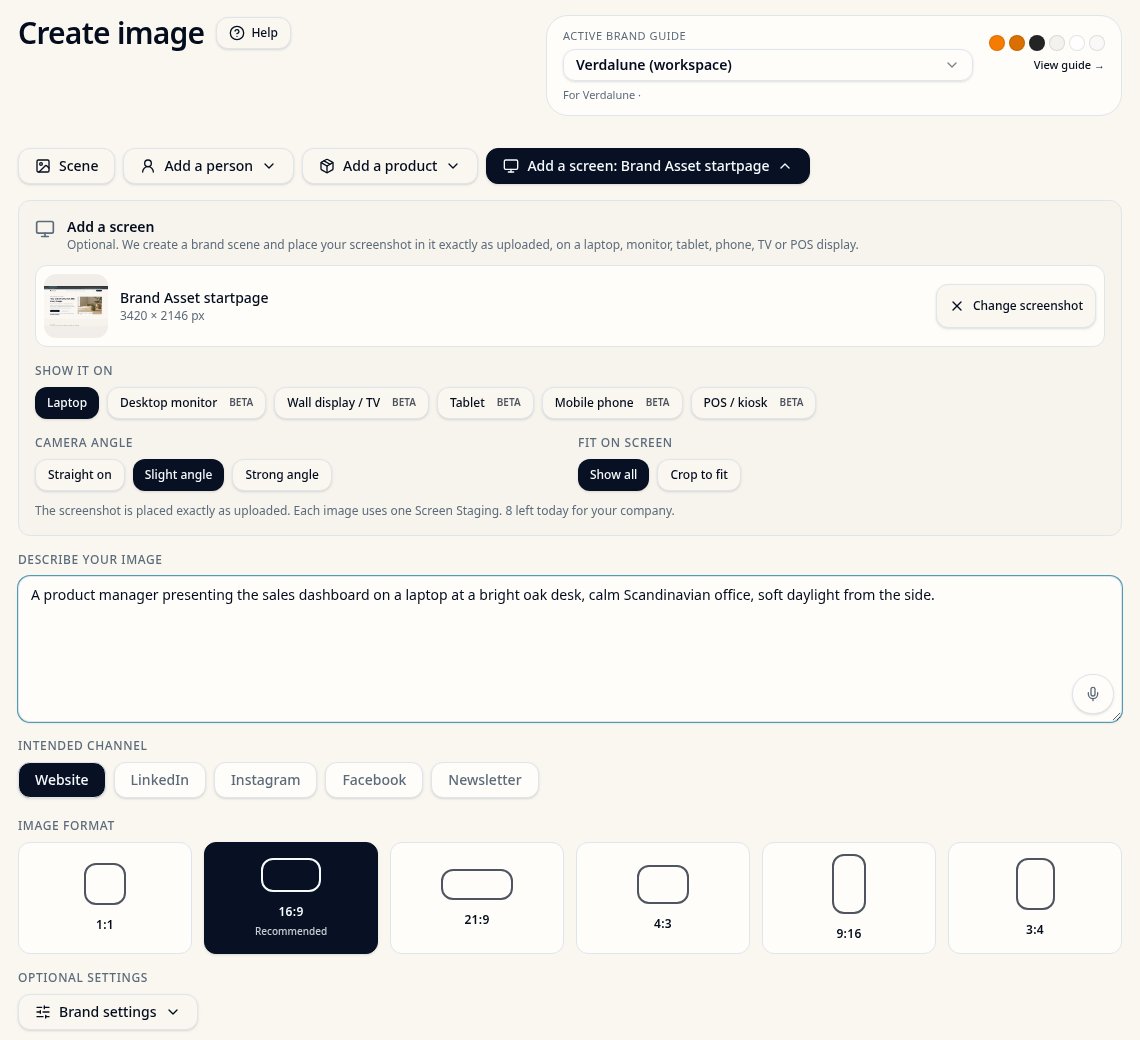
Choose a screenshot, then the device, camera angle and how it fits on the screen.Brand Asset test workspace · 20 November 2026 · select the image to enlarge. Describe the scene and generate
Describe the room and situation in Describe your image. A logo is only added if you ask for one. The button shows how many images are made, for example Generate 2 new images, following Images to generate under Brand settings. Each image uses one generation from your daily allowance.
Check, adjust and submit
Results have the same tools as other images: score, magnifier, Inspect & improve, Edit image, Export and delete. Under Edit image → Adjust the screen light you change brightness and reflections without redrawing the screenshot. On a phone, open Inspect, edit or export → Adjust the screen light. The existing scene is reused, so this does not use another daily Screen Staging generation. The 80% compliance rule applies before Use this image.
Combine a person and a screen
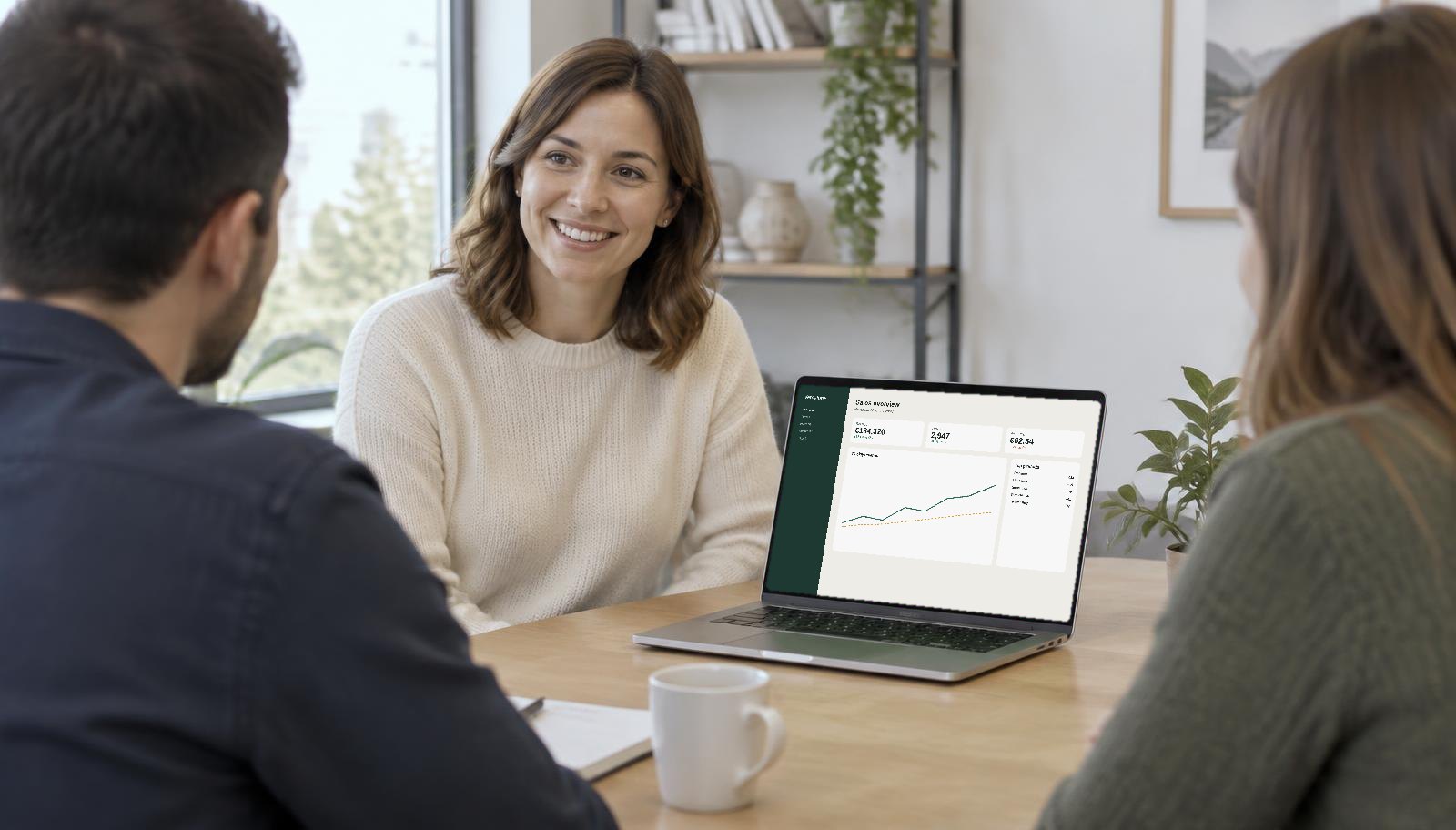
Select both Add a person and Add a screen to show, for example, a colleague presenting a dashboard. Two add-ons can be active at the same time; a product is always staged on its own. Both add-ons must be enabled for your workspace, and the person’s consent must cover the chosen channel.
No hand, finger, arm, hair or shadow may cover the screen, and the person does not touch or point at it. If something still covers the display, discard the image and generate a new one.
Do’s and don’ts
| Do | Avoid |
|---|---|
| Use a sharp, full-resolution screenshot without personal data. | Upload screenshots showing real customer names or private figures. |
| Start with a laptop for the most reliable result. | Expect Beta devices to work every time. |
| Check the screen edges and reflections at full size. | Publish an image where the screen looks cut off or covered. |
If something does not work
Why can I not upload my own screenshot?
Your company may have Strict mode on. Only active company screenshots can then be used, even by administrators. Ask your Company Admin to add the approved screenshot under Company → Screen Staging.
Why did I get an error instead of an image?
If the screen in the generated scene cannot be found or fitted correctly, Brand Asset stops instead of drawing your screenshot by AI. Try again, or simplify the scene.
Why is my WebP file rejected?
Screen Staging accepts PNG and JPG only. Export the screenshot in one of those formats.
Why can I not add a product as well?
One image combines at most two add-ons, and a product is staged on its own. Use Person and Screen together, or a product alone.