
Why this helps
Compliance scoring helps identify risks, while a reviewer judges whether the result is suitable for the actual campaign. Clear decisions and revision history keep the final asset traceable.
You need Approver or Company Admin permissions. Open Approvals and review another person’s submission.
Review and record a decision
Open the review queue
Select Waiting for review in Approvals. Identify the correct campaign and version. Use Refresh if a recent submission is not yet visible.
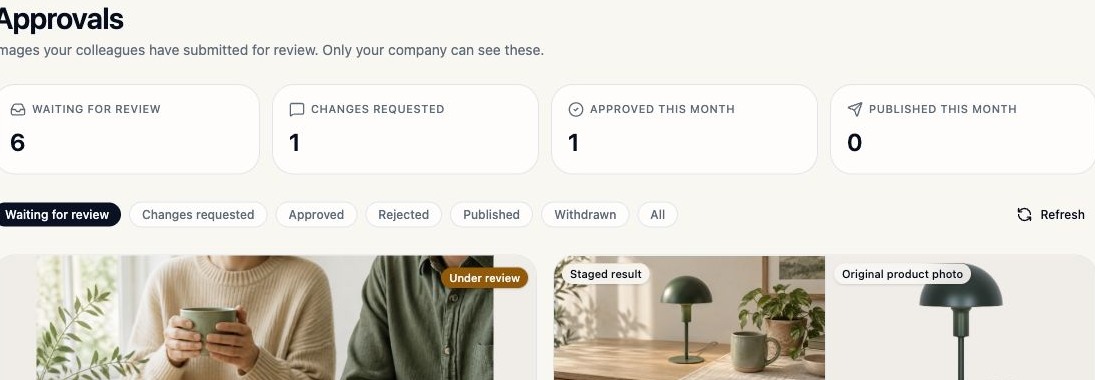
Use status filters to find work awaiting a decision.Brand Asset test workspace · 5 November 2026 · select the image to enlarge. Read the brief and inspect the actual image
Check campaign, channel, format, usage URL and notes. Expand Prompt to understand the generation context. Review the image score and every warning, then inspect the image at a useful size.
For Product Staging, compare Staged result and Original product photo. Check product identity, proportions, surface finish and small components. Review the saved staging context when a placement seems inconsistent.
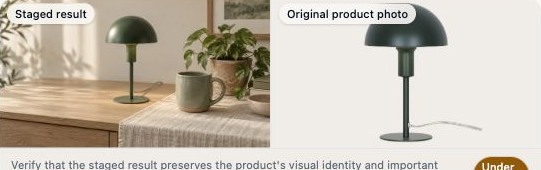
Product fidelity and scene quality need separate checks.Brand Asset test workspace · 5 November 2026 · select the image to enlarge. Choose the appropriate decision
Decision When to use it Approve The version is suitable for the intended use and meets the brand requirements. Request changes A specific correction can make this version suitable. Describe the issue and the expected result. Reject The submitted direction needs replacing. Explain why so the creator can choose another approach. Rule · independent reviewYou cannot approve your own submission. The current queue displays “This is your own submission — another approver will review it.” Ask another approver to handle it.
Write actionable feedback
In Request changes, add a comment and select Send feedback when ready. Explain what to change and why it matters. Request changes and rejection require explanatory feedback.
“Remove the lettering on the mug. Keep the ceramic shape and current lighting, then resubmit this version for the newsletter.”
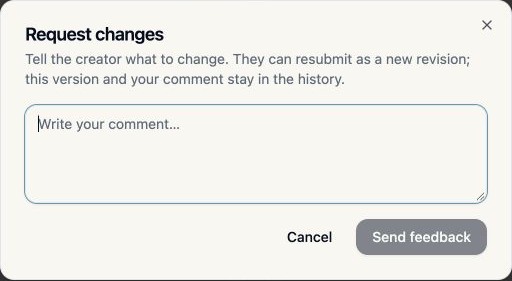
Keep feedback specific enough for the creator to act on.Brand Asset test workspace · 5 November 2026 · select the image to enlarge. Review the new revision
When the creator resubmits, check the latest version against your earlier feedback. Previous submissions and comments remain in the history. Confirm the resulting status after your decision.
Good to know · approval and publicationApproval records a review decision. Publication is a separate action. Follow the company’s process for using approved assets and recording publication.
Do’s and don’ts
| Do | Avoid |
|---|---|
| Review the image and warnings, even above 80%. | Approve based on the score alone. |
| Compare staged products with their original photos. | Judge only whether the scene looks attractive. |
| Give a specific correction and a reason. | Leave “make it better” as the entire feedback. |
| Check the newest revision before deciding. | Assume an older decision applies to a revised image. |
If you cannot make a decision
Why are there no decision buttons?
Check whether it is your own submission and whether you have review permissions. A version that has already been decided may also show different actions.
Can I approve an image below 80%?
No. The creator must refine or regenerate an image that does not meet the minimum compliance threshold.
I can’t find a submitted asset.
Check the current status filter and refresh the queue. Confirm that you are in the expected company workspace and that the creator completed submission.
Does Mark as published upload the image to our website?
Treat it as recording the asset’s publication status within Brand Asset. Use your company’s normal publishing tools and process for external channels.