
Why this helps
A shared guide keeps brand decisions consistent across creators. A formal update request and visible governance history help the company change those rules deliberately.
Use a Company Admin account for the Company view. The active Brand Guide is available from the guide card in Create.
Read the guide and request an update
Open the active Brand Guide
From Create, select View active Brand Guide. Confirm its name and Last updated date. Review Summary, Visual style, Colours, Do, Don’t, Composition, Never show and Channels.
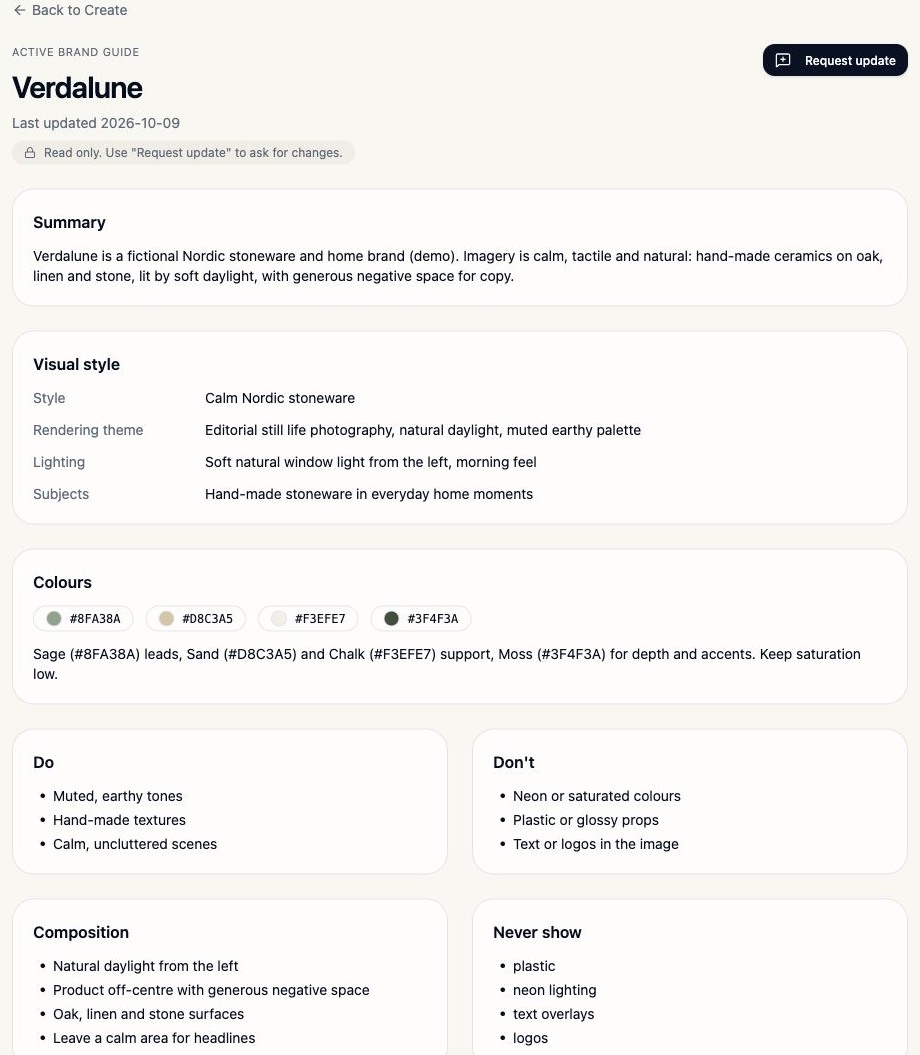
This view explains the rules currently applied to creation. It is read-only.Brand Asset test workspace · 5 November 2026 · select the image to enlarge. Describe the rule that needs changing
Select Request update. Choose Colours, Do / Don’t rules, Things to never show or General update. Explain the current problem and the exact change you want.
The Describe the change field requires at least 10 characters and allows up to 4,000. Add a Link to reference when useful. Select Send request to ask for a review of the change.
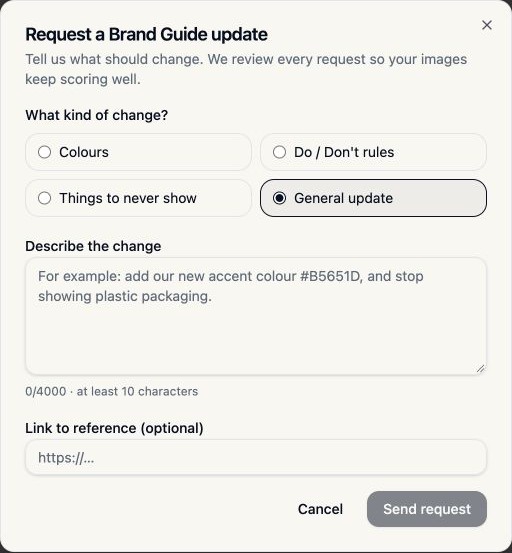
Request a reviewed change rather than trying to edit the active rules directly.Brand Asset test workspace · 5 November 2026 · select the image to enlarge. Pro tipInclude a concrete example: “Add the approved accent colour #B5651D for the autumn campaign; retain the current primary palette.” Link to the approved source material.
Check the guide after an update
A request does not immediately rewrite the active Brand Guide. After the change has been handled, reopen the guide and check the affected rules. Ask a creator to generate a representative image and inspect the result before relying on the new direction.
Monitor company activity
Choose a reporting period
Open Company. Under Company metrics, choose This month, Last month or Last 90 days. Check the date range. Use the information buttons to read how individual metrics are calculated.
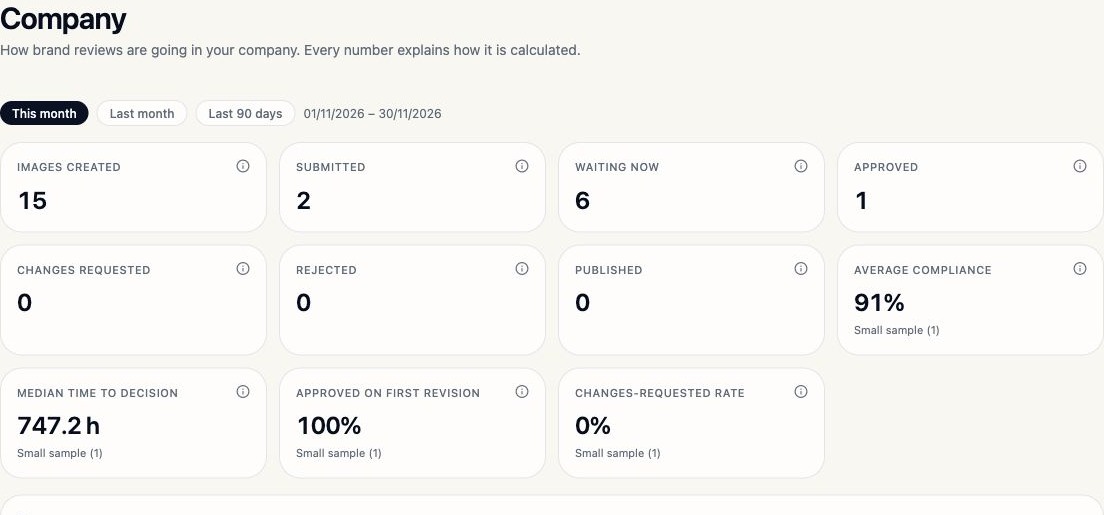
Read the metric definitions and sample-size labels before drawing conclusions.Brand Asset test workspace · 5 November 2026 · select the image to enlarge. Use Team governance and the audit trail
Team governance shows review outcomes for each person’s submissions, plus login information. Login counts start when tracking was enabled; they are not lifetime usage totals. The current table explicitly excludes generation volume.
Use Audit trail → Event to focus on submissions, review decisions, Brand Guide changes or other recorded governance events. Follow up on specific workflow issues rather than treating one score as a measure of a person’s performance.
Coordinate access and publication
Confirm who creates, who reviews and who owns company administration. If access or add-on availability needs changing and no control is available in your view, contact the platform administrator through Support.
When publication is recorded through Mark as published, verify the correct asset and version. If an asset is withdrawn, follow up on copies already used in external channels.
Do’s and don’ts
| Do | Avoid |
|---|---|
| Request a specific, approved rule change. | Assume sending a request changes the guide immediately. |
| Compare metrics over a consistent date range. | Compare totals from different reporting periods without context. |
| Read Small sample labels and metric definitions. | Treat a sample of one as a reliable team trend. |
| Use appropriate roles and independent review. | Share account credentials to work around permissions. |
If something seems inconsistent
Why can’t I edit the Brand Guide?
The active guide is read-only in this view. Use Request update to ask for a reviewed change.
Why do some metrics show a dash or Small sample?
There may be no eligible observations or too few results for a meaningful trend. Read the metric definition and sample-size label.
Why is Waiting now different from Submitted?
They represent different questions. Read each definition rather than assuming the current queue is limited to submissions created in the selected period.
Where do I change a teammate’s permissions?
Use only the controls available to your role. If your Company view has no member-management control, send a support case with the required access change instead of assuming you have platform-admin access.